

 HANDS ON SharePoint
 HANDS ON Teams
 HANDS ON Lists
 HANDS ON tek
 M365 Admin
Create a presentation and add a slide with Copilot in PowerPoint moving to Agent Mode in the Copilot chat pane
Creating presentations and adding slides with Copilot in PowerPoint will move from the Sparkle icon to Agent Mode in
the Copilot chat pane across Windows, Web, and Mac by mid-April. Users will access this via the Copilot icon, select
Agent Mode, and interact through chat to draft and refine presentations. Organizations should update training and
notify users accordingly.

As part of our efforts to simplify our experiences, creating a presentation and adding a slide with Copilot will soon
no longer be available via the Sparkle icon above the slide in PowerPoint for Windows, Web, and Mac. Instead, you
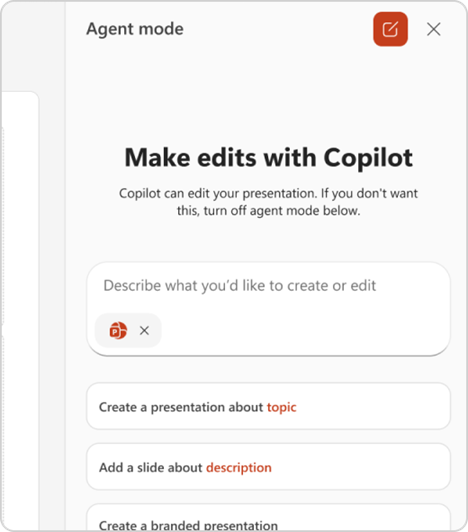
can access the ability to create a presentation with Agent Mode via the Copilot chat pane in PowerPoint.
Our goal with this change is to converge our experiences into chat to provide a single, consistent Copilot experience
when working with presentations on Windows, Web, and Mac.
When will this happen:
We are targeting the removal of the Sparkle icon above the slide in PowerPoint and the redirection to Agent Mode to
begin rolling out mid-March on Web and complete by end of March. For Windows and Mac, we are targeting to begin
rolling out at the end of March and complete by mid-April.
See Microsoft 365 Roadmap | Microsoft 365 for other new capabilities coming in April and beyond.
How this will affect your organization:
Once the change has rolled out, users will need to follow these steps to create a presentation with Copilot:
- Start a new presentation in PowerPoint.
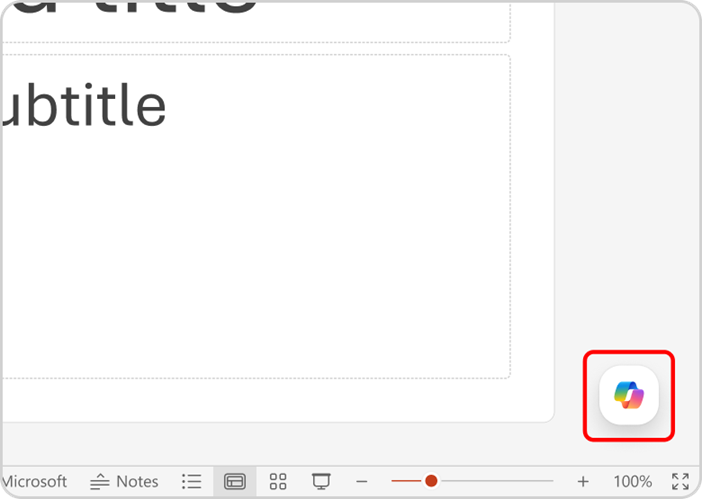
- Click on the Copilot icon in the lower right-hand corner in PowerPoint to open the Copilot chat pane.
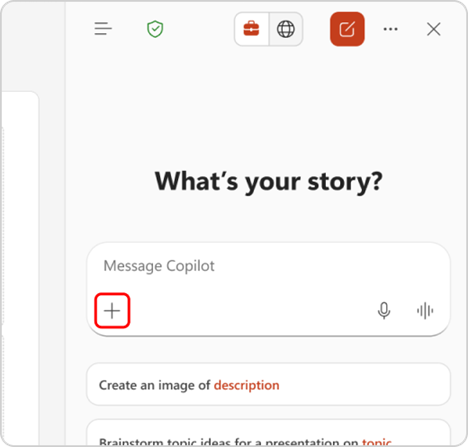
- Click on the Tools button in input box within the Copilot chat pane.
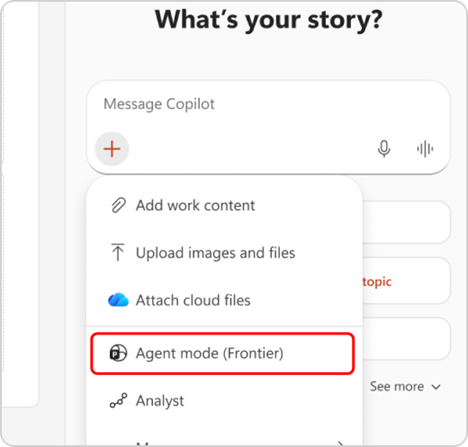
- Click on Agent Mode in the drop down menu.
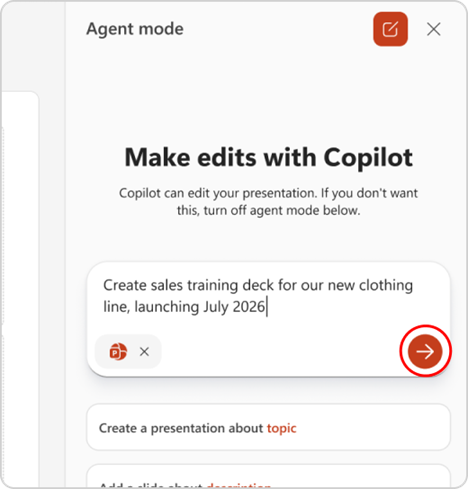
- Type in a prompt with a description of the presentation you’d like Copilot to help you draft.
- Click the -> button to submit your prompt.
- Copilot may ask you some clarifying questions such as who is the target audience of the presentation, what
presentation and image style you’d like, etc. before generating an outline of your presentation. Share your
preferences or skip and let Copilot decide.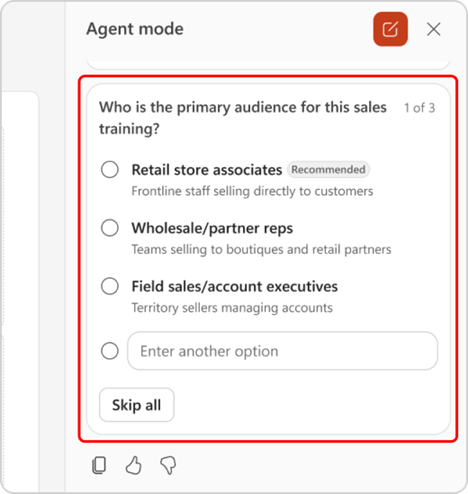
- Once Copilot has generated your outline, you can continue to chat with Copilot to refine your outline. When
you’re ready, you can let Copilot know to generate your slides. - After Copilot has generated your presentation, you can continue to chat with Copilot to edit and refine your
slides.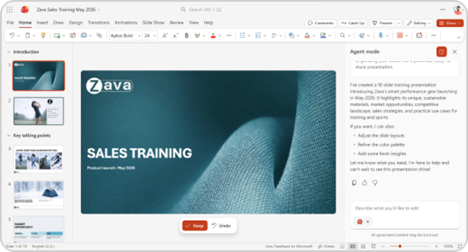
Note: Support for referencing files is coming soon.
What you need to do to prepare:
You may want to notify your organization about this change and consider updating your training and documentation as
appropriate as users will get this change automatically as it progresses through the deployment rings.
You can leverage organization or on-brand templates in Agent Mode by setting up Brand Kits. Alternatively, you can store templates in an organization assets
library.
Message ID: MC1239724





